



STEP 1
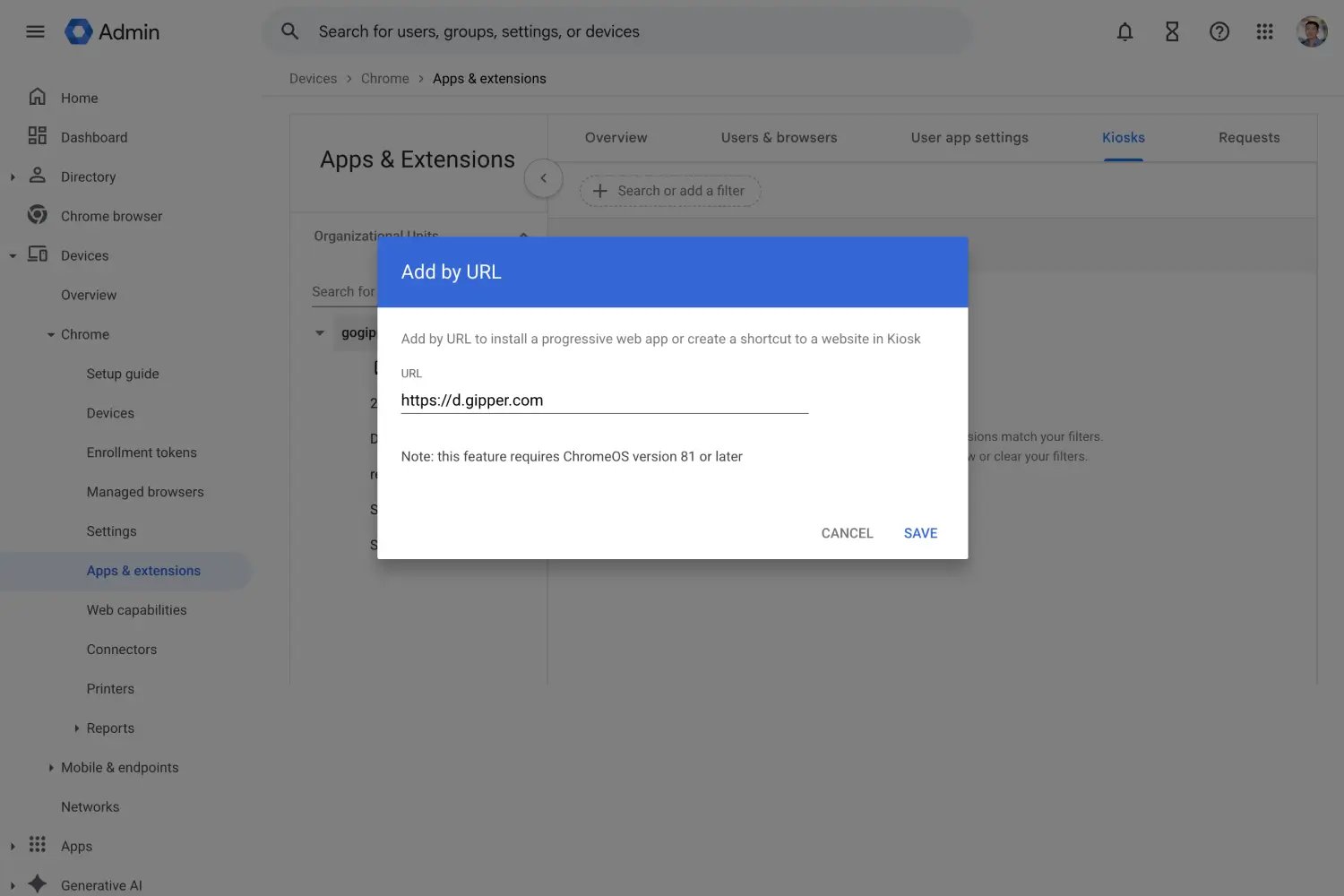
Configure Gipper Display in Google Admin Console
School IT departments will go into Google Admin Console and install Gipper's Signage App and assign to the chrome device. Once installed, on the display you will now see a pairing code.
.webp?width=1500&height=1000&name=displaysetup2%20(1).webp)
STEP 2
Pair your Chrome OS Display with Gipper
Add the Chrome OS Display as a Screen to your Gipper account using the pairing code.
STEP 3
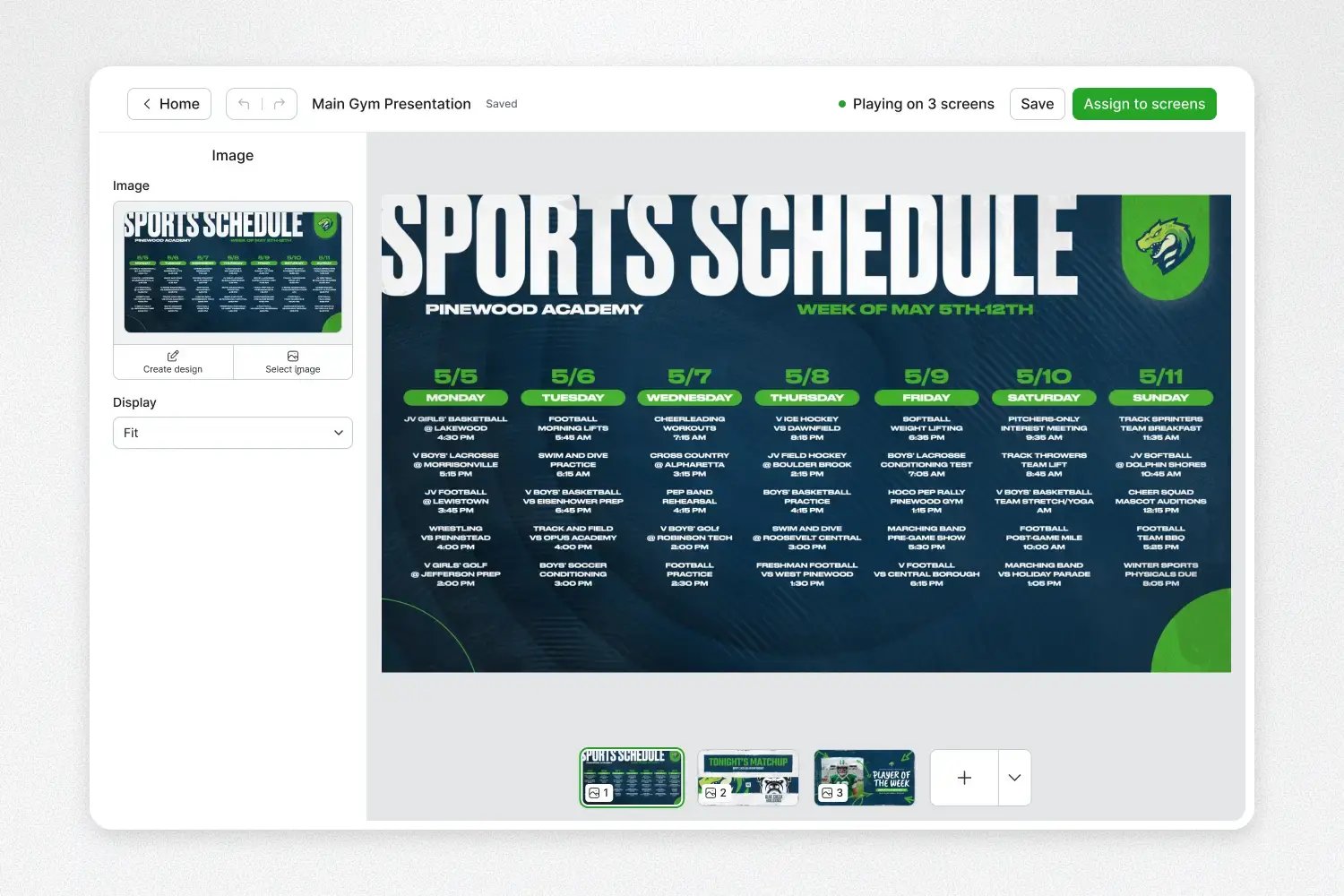
Create a slideshow that can automatically update your Chrome OS screen
Create slideshows of content in Gipper and assign it to your Chrome OS screen.
STEP 4
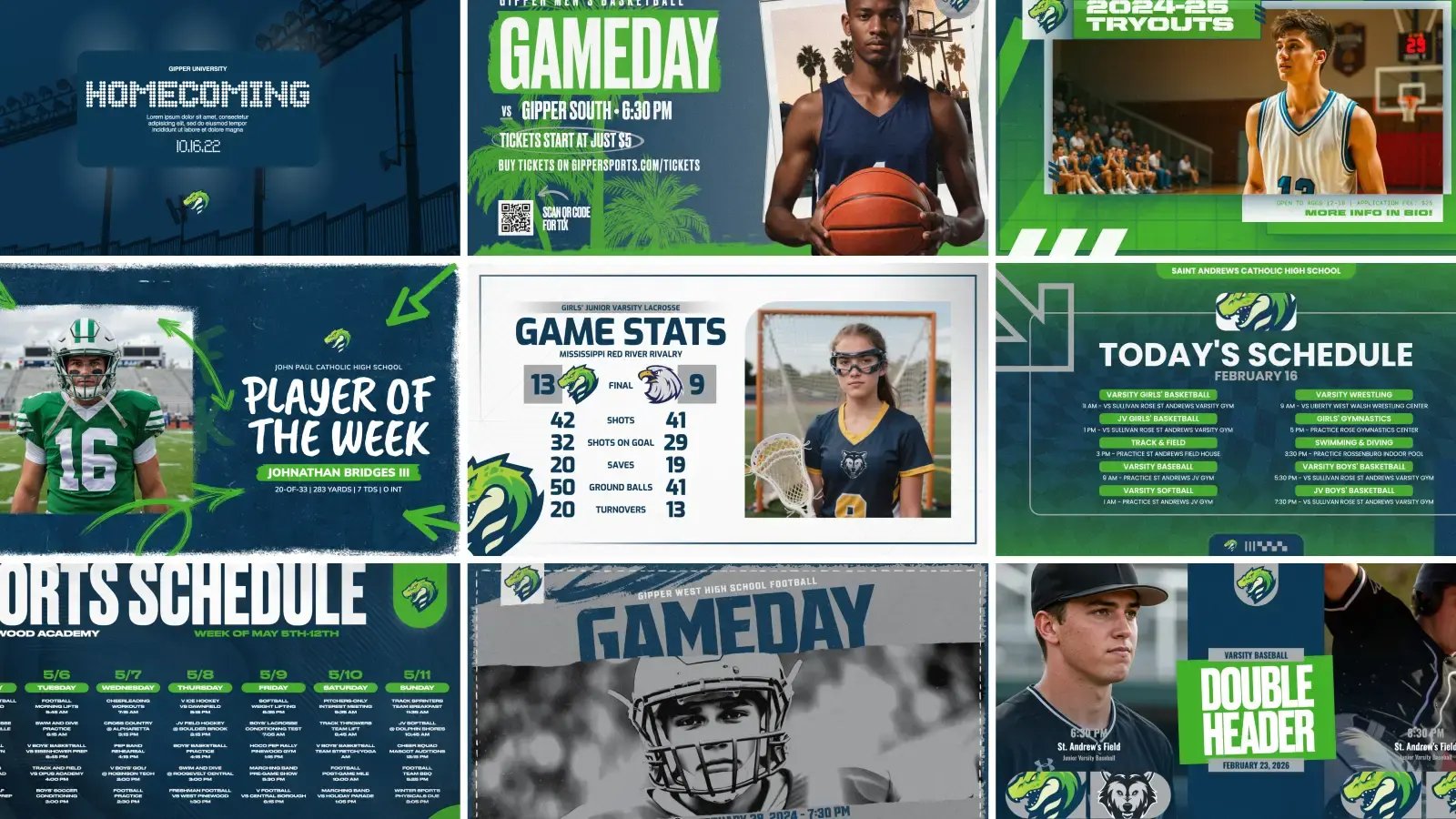
Save time by creating and managing all your content in Gipper
Whenever you make a graphic, you can publish it directly to your Chrome OS screen and it will automatically update instantly.
Trusted by athletic departments
"Gipper Display is fantastic. What took me three hours now takes me five to ten minutes."
Kyle Jarrell
Athletic Director at Dunkirk High School (NY)

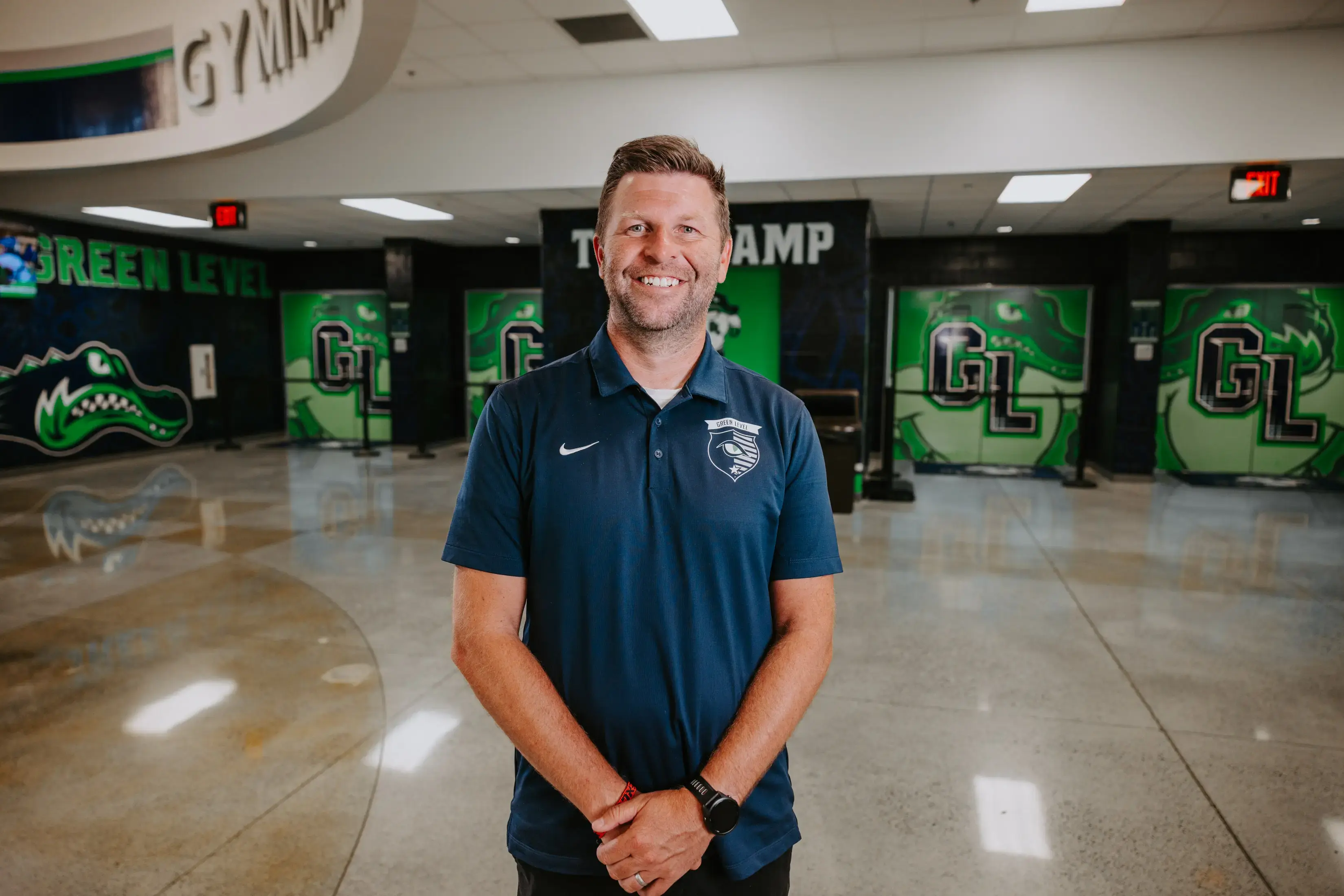
"I just click once and it automatically sends it to my Instagram, X, and my two displays outside our gym. It's incredible."
Colin Fegeley
Athletic Director, Green Level High School (NC)
"I love the simplicity of it and how quick it is to use. It's all right there in one place."
Tiffany Lavene
Administrative Assistant, Central City High School (NE)